Configure Nginx To Automatically Restart On Ubuntu
Posted February 10, 2024
By Kevin Schwickrath1 min read
If Nginx process is dies, you can run following command to restart it.
sudo systemctl restart nginxWhat if you’re sleeping?
We can have Nginx automatically restart! To override the default systemd service configuration, we will create a new configuration directory.
sudo mkdir -p /etc/systemd/system/nginx.service.d/The -p flag will create nested directories if they don’t exist already.
Then create the following file.
sudo vi /etc/systemd/system/nginx.service.d/restart.confAdd the following lines to the file. These lines tell Nginx to automatically restart 5 seconds after detecting a failure.
[Service]Restart=on-failureRestartSec=5sFor additional options, you can visit the man page.
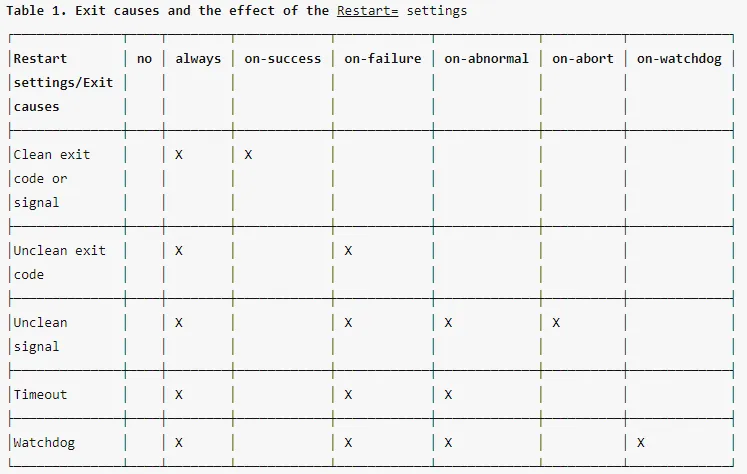
Reload systemd for the changes to take effect.
sudo systemctl daemon-reloadTo verify this change is working, kill Nginx with:
sudo kill -9 nginxAs that other guy said: “kill -9 is the unsafe way of brutally murdering a process. It’s equivalent to pulling the power cord, and may cause data corruption.”
Check Nginx status.
ps aux | grep nginxNow try it with kill -15
sudo kill -15 nginxRecheck Nginx status. You will find Nginx automatically restarted the first time but not the second.
ps aux | grep nginxsystemctl status nginx
Have fun!
This post is licensed under CC BY 4.0 by the author.