Recovering From Windows INACCESSIBLE BOOT DEVICE Errors
Posted December 31, 2023
By Kevin Schwickrath3 min read
Kali Fun Box
In Nov 2022 I purchased an Asus BR1100CKA for around $90 out the door. It isn’t much, a Celeron N4500 (1.1GHz), 4GB RAM, 64GB eMMC storage, plus an M.2 SSD slot. This is a bargain bin laptop, nothing more. I was looking to build a Kali fun box. Something to play with and show the kids neat things that are not video games.
My ideal specs were:
- Inexpensive - something I don’t care about if it wound up broken
- Lightweight
- Rugged
- Long-lasting battery (4+ hours)
- USB-C charging
- Powerful enough to run a recent Linux distro
This bargain-bin laptop checks most of my boxes. I get about 6 hours of battery. The M.2 SSD slot made dual booting a snap with a Crucial P3 500GB PCIe M.2 2280 SSD I found for $25. The downside is that the Intel AX201 doesn’t support monitor mode. I’ll pair it with an ALFA AWUS1900 USB wireless adapter and a Proxmark3 RDV3 to make a neat little fun box.
Recovering From INACCESSIBLE BOOT DEVICE Errors
Funny story. I left Windows on the 64GB eMMC drive. I boot into it every so often to install the plethora of updates Windows has. Who knows, I might need it for something.
Today, after installing the last 3+ months of updates and rebooting, I was greeted with this:
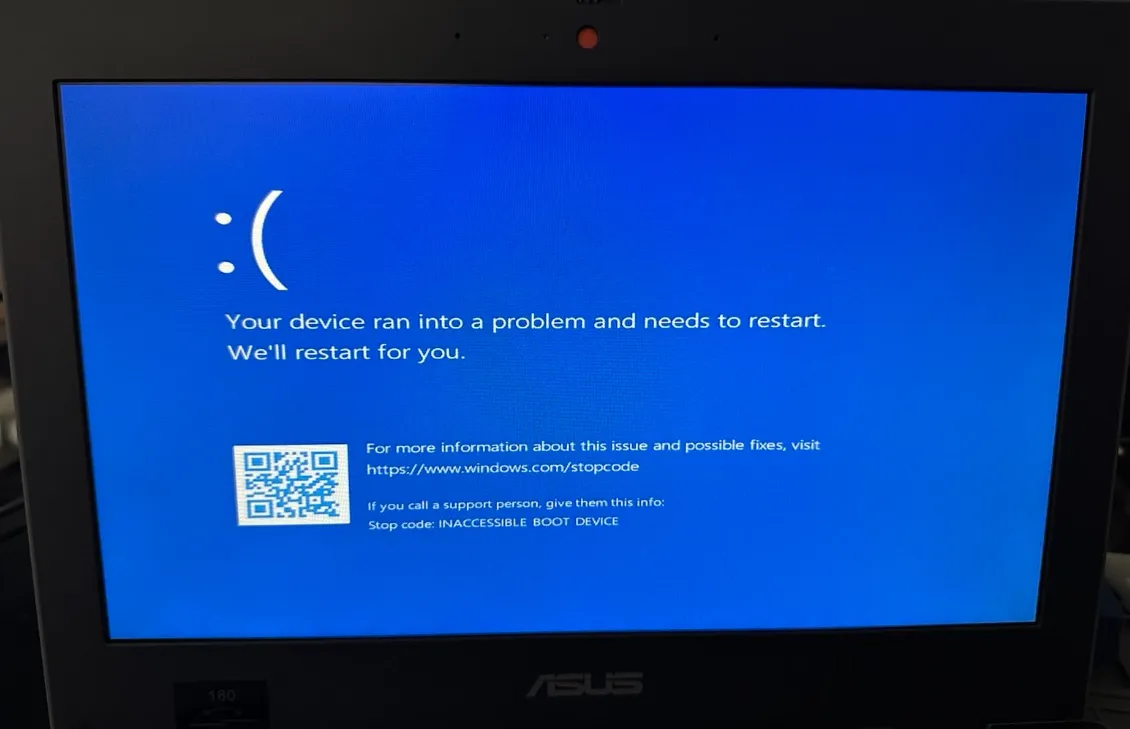
After running around in a repair loop a few times, a few “SFC” and “DISM” things, I gave up. I decided to blow the installation away. For some reason, I usually have an issue with Windows, Asus laptops, and storage drivers. I figured some driver update I installed borked. I have no data on this drive and I don’t want to waste any time on it.
Not wanting Windows to “help me” by wiping my Linux install, I pulled the M.2 SSD. After pulling the drive I booted the computer. It was a more morbid curiosity rather than a troubleshooting step.
Windows booted up. (¬__¬)
Windows did go through the remainder of a system restore operation I started earlier. Once booted into normal mode I reinstalled all the Windows updates and rebooted. Everything looked happy. I rebooted again because, well it is Windows.
I reinstalled the M.2 SSD and guess what, it’s not listed as a boot option anymore.
Simple fix, we need to relink EFI.
- Reboot and hit F2 to enter the BIOS utility screen
- Select Advanced Mode
- Boot
- Click Add New Boot Option
- In the Add boot option line type the name of the option,
kalifor me - Click on the Path for Boot option
- Select the drive under Look In
- Browse for the .EFI file from the list. Mine was in
EFI\kali\grubx63.efi - Click Create
- Make Boot Option #1 Kali by clicking on the box or go back to EZ Mode and drag it on the right side menu to the correct boot order.
- Save and exit
Why was this so difficult? Because it can be. Hopefully, this wasted hour will help save someone else some time.
This post is licensed under CC BY 4.0 by the author.
Related Posts
Change Windows 11 Screenshot Folder
I take a lot of screenshots while making documentation. I like them to land in a specific place. Below are the steps to change the screenshot folder in…
Leveraging Hyper-V to Add VLANs in Windows 11
As mentioned in my last post, I recently upgraded one of my Windows 10 machines to Windows 11. In the process, I discovered that Intel is no longer…
Removing Old Network Adapter Settings From Windows
I recently upgraded one of my Windows 10 machines to Windows 11. In the process, I discovered that Intel is no longer supporting Intel PROSet beyond…
Extracting Intel RST Drivers From Executable
Reinstalling Windows on an Asus Tuf DASH F15 FX517ZR. From prior experience I knew I needed the Intel RST drivers. After fooling around on Intel's website…